




How to remove people from a photo with AI
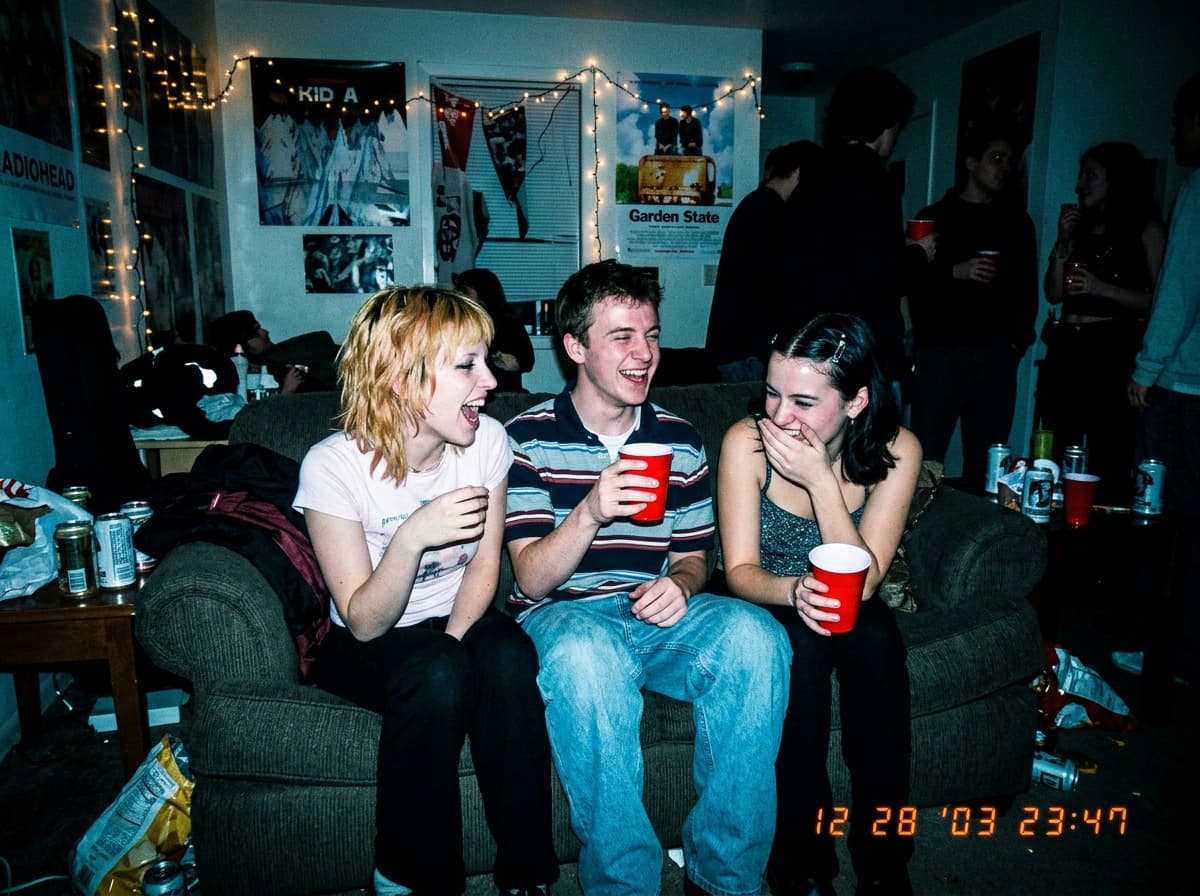
Removing a person used to mean selecting them, deleting them and clone-stamping the gap for half an hour. An AI image model does the whole job at once: it understands which shapes are the people in the background and what would be behind them, then paints that in. Pop-Cam uses Google's Nano Banana 2 model with strict rules: remove only what you asked for, keep the main subject exactly as they are, and leave no smudges or outlines. It's the same idea as what Google Photos calls Magic Eraser, but it works on any photo, from any phone or computer.
Tips for a clean result
- Be specific when you type: color, position and size (“the woman in the blue coat behind me on the right”).
- For several unrelated things, remove them one at a time by running the result through again.
- Objects that overlap your subject, like a hand on your shoulder, are the hardest to remove cleanly.
- Upload the full-resolution photo; the more detail around the object, the better the fill.
More ways to fix a photo
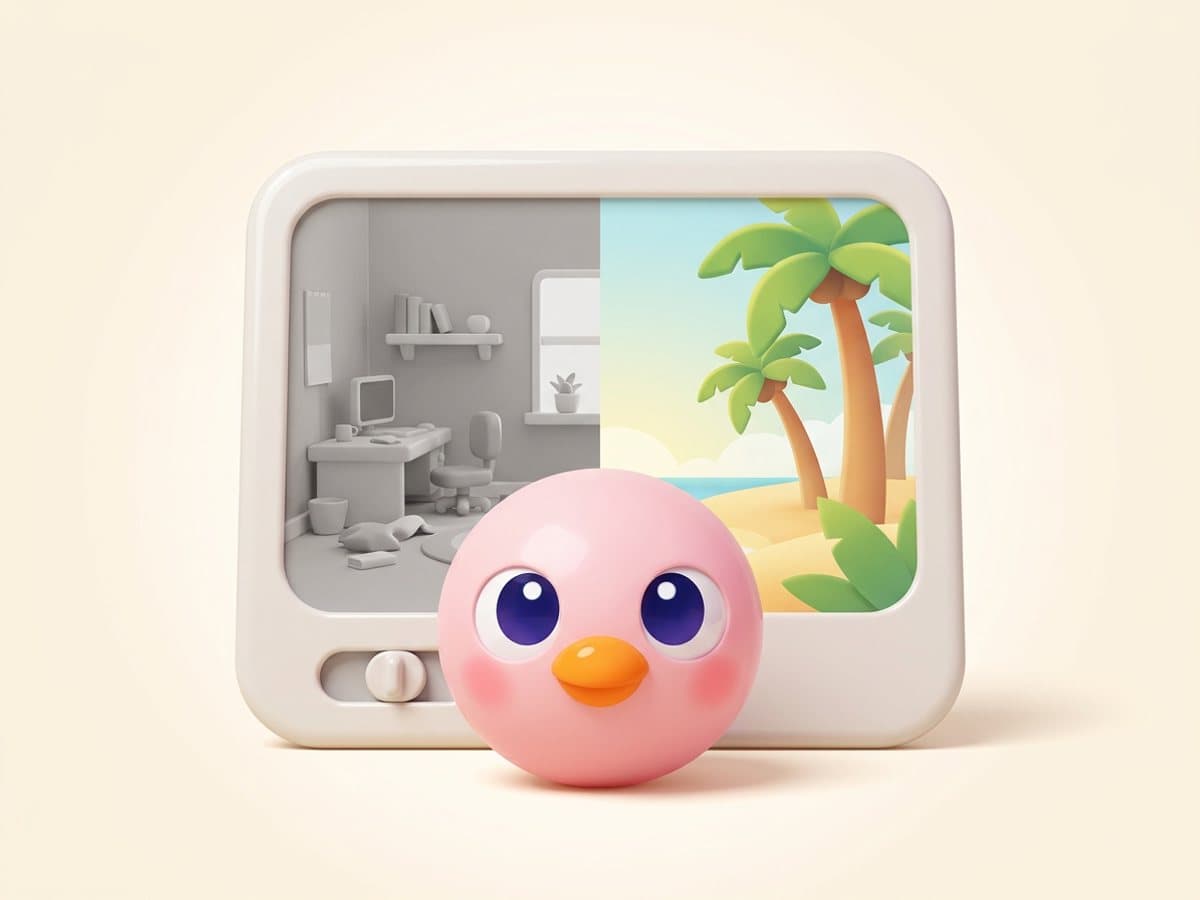
If the problem is the whole place rather than one thing in it, the photo background changer swaps the entire background. For captions, date stamps and stickers, use the AI text remover. For scratched and faded prints, try old photo restoration.
Free to try
Your first generation is free, no sign-up needed, and a free Pop-Cam account comes with 2 free 💎 (1 per image), no credit card. Need more? 💎 packs start at $6 for 24 generations. See all free AI photo editor tools.