 By fengcainiao
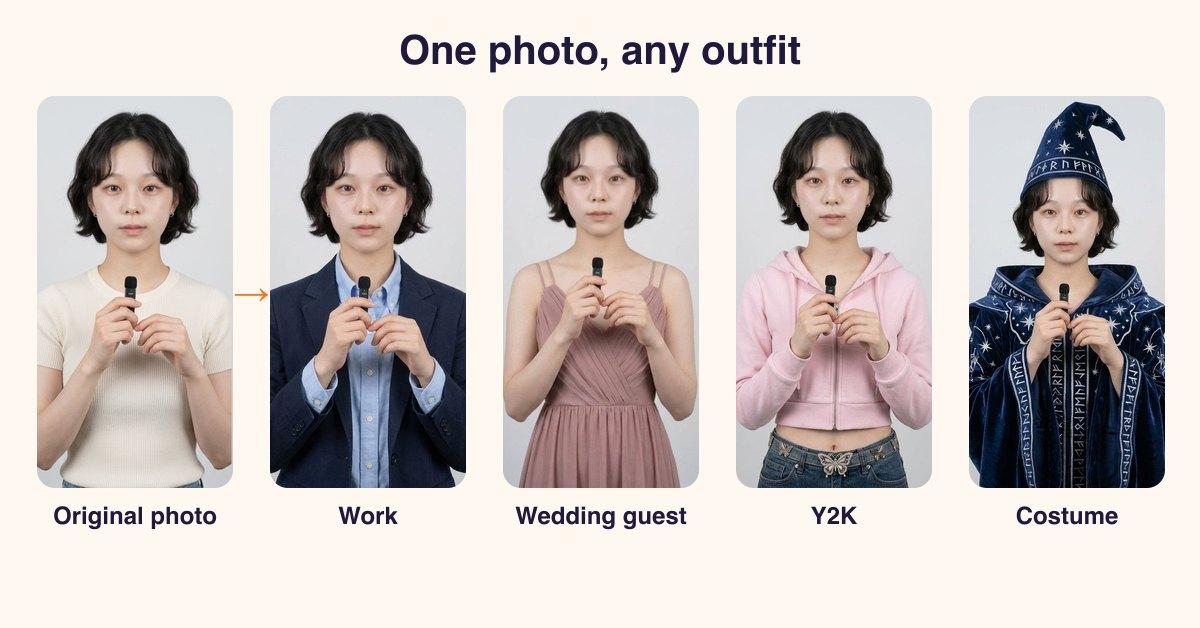
An AI clothes changer puts new clothes on the person in a photo and leaves the face, the pose and the background as they are. You may also see it called an AI outfit changer or an AI clothes swap. Most pages about it are tool pages that say “upload a photo”. This one answers the question people ask before they upload: is it useful, and for what?
The short answer: it is a good style check and a poor fit check. It can show you whether a color, a cut or a whole look suits you. It cannot tell you your size. Below are seven things it is good for, each shown on the same photo. You can do all of them in Koosu’s AI Outfit Changer (Koosu is the new name of Pop-cam).
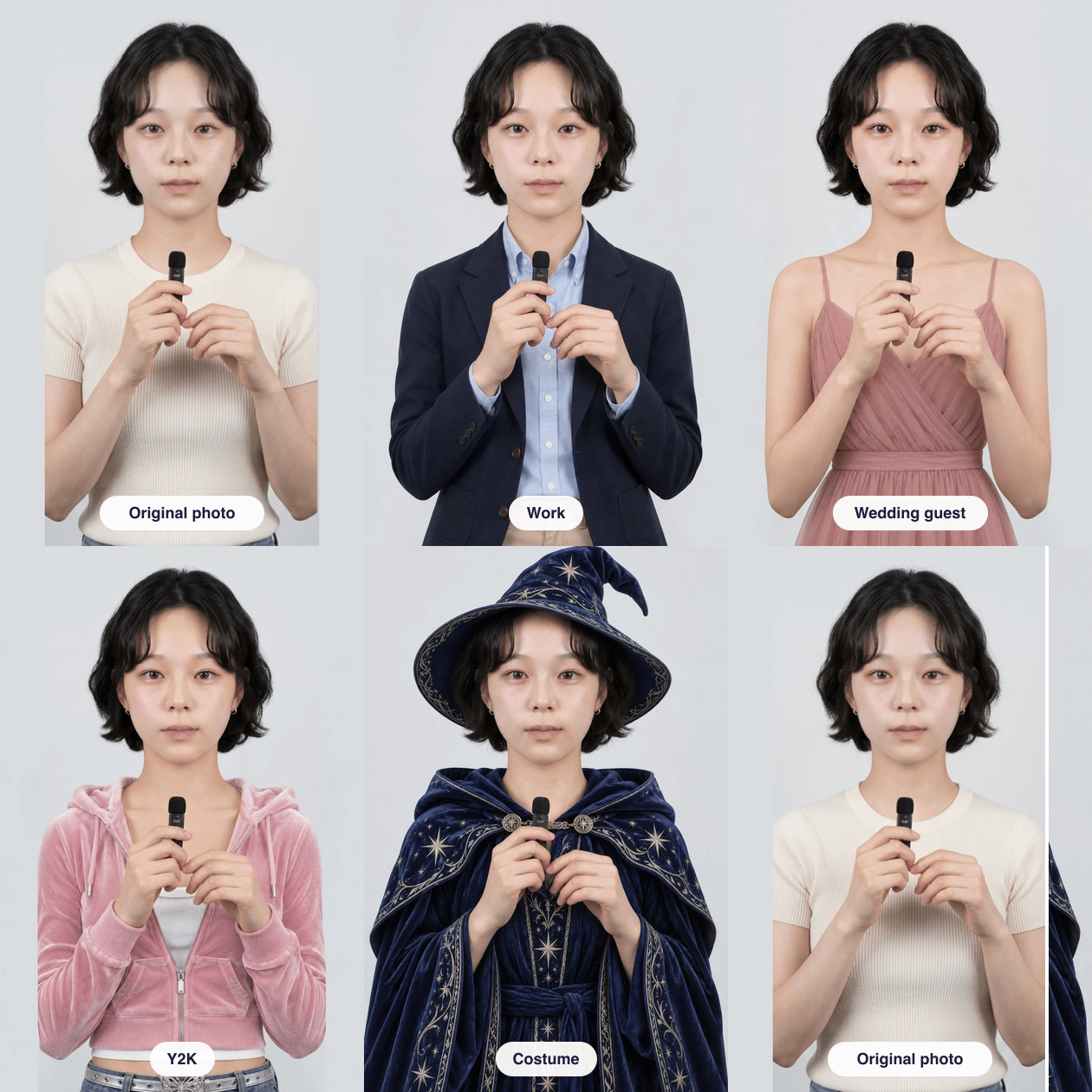
The animations in this article were made from one photo with GPT Image 2.6 Sunburst, one of the image models on Koosu.
What Is an AI Clothes Changer?
You give it a photo of a person, then say which clothes to draw. There are three ways to say it:
- Pick a ready-made outfit. Koosu has 29, sorted by occasion: work, casual, aesthetic, seasonal and costume.
- Describe the outfit. One sentence is enough: “an oversized beige trench coat over a white tee”.
- Upload a photo of the clothes. A product shot or a screenshot from a shop. The AI dresses you in that piece.
The model redraws only the clothing so that it follows your body and pose, with folds and shadows. A waist-up photo stays waist-up, so the before and the after line up. You do not mask or select anything by hand.
Is an AI Clothes Changer Actually Useful?
Yes, for one kind of question: does this look right on me? The color, the cut, the overall style. No, for the other kind: does this fit me? Size, fabric weight and stretch are not in a picture.
That matches what people who have tested these tools say. One commenter calls it fine “for finding styles you might like on you”, then adds that the part that matters when you buy is “how it actually fits you”, which AI does not replicate. Google says the same about its own try-on: the generated image “does not determine or guarantee the actual fit of the garment”.
So use it to decide what to wear or buy, and use the size chart to decide which size. Every use below works inside that limit.
Which Input Should You Use?
The input you choose matters more than the tool. Match it to the job:
| You want to | Best input | Tip |
|---|---|---|
| See a specific item on you | Upload the clothing photo | Use a front-facing product shot or a clean flat lay of one garment |
| Choose a headshot outfit | Ready-made Work outfits | Use a waist-up photo, facing the camera |
| Plan a wedding or event look | Describe the outfit | Include color, length and season |
| Test an aesthetic | Ready-made Aesthetic outfits | Run several on the same photo and compare |
| Try a costume | Ready-made Costume outfits, or describe it | Name the main pieces: hat, cape, coat |
| Make outfit-swap content | Any, on one photo | Keep the same photo so the frames line up |
| Show a garment for a shop | Upload the clothing photo | Label the result as an AI preview |
The outfit changer is one of Koosu’s AI photo editing tools. If the job is the hair, the background or the whole photo and not the clothes, start there.
What Can You Use an AI Clothes Changer For?
1. See an Item on You Before You Buy It
This is the virtual try on use, and the most common one. You see a jacket in a shop or on a feed and want to know if it suits you before you pay for shipping and maybe a return.
Save the product photo or take a screenshot, open the outfit changer, upload your own photo, then add the clothing photo in the second box. A clean product shot of one garment works better than a photo of someone wearing it at an angle.
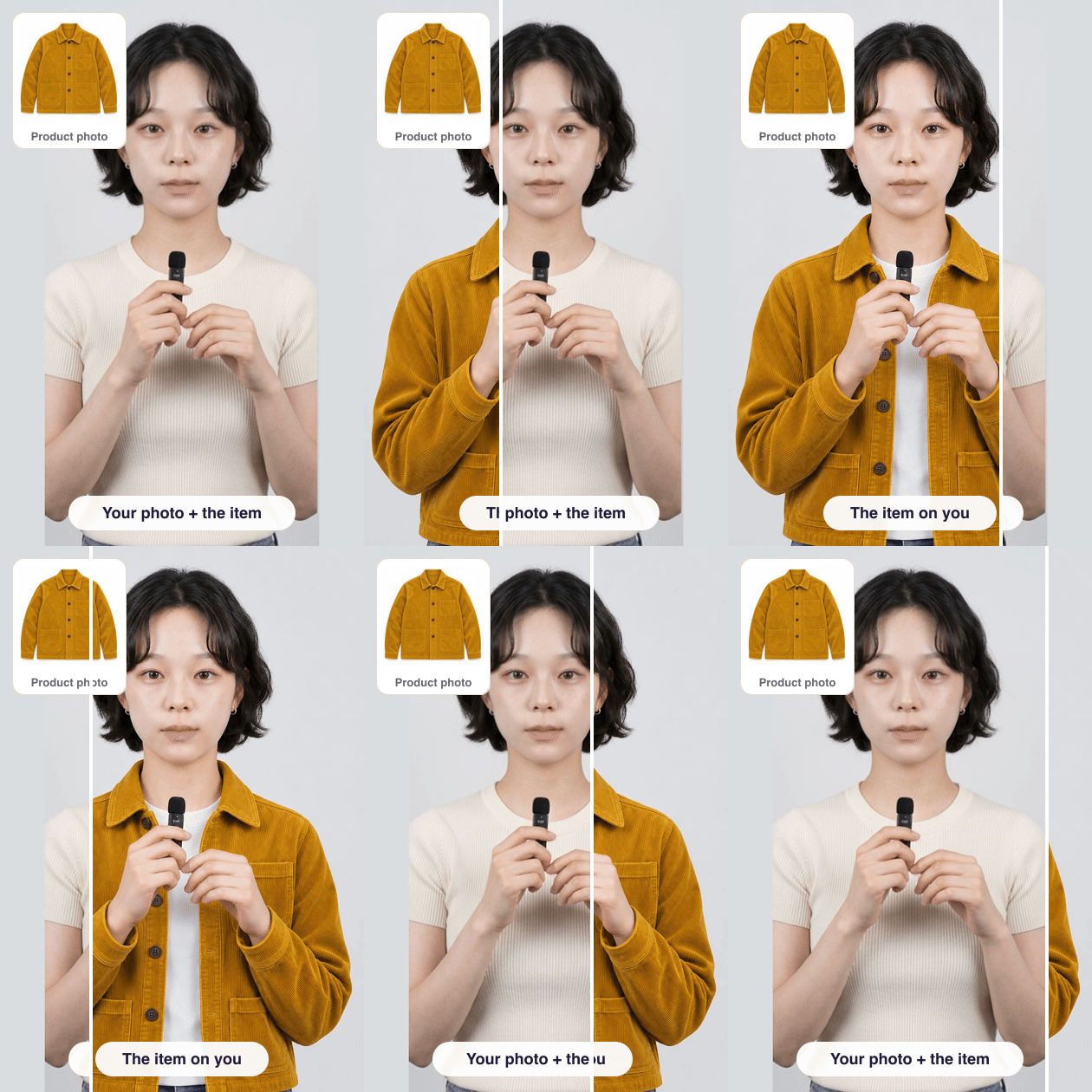
The result answers the style question: color, cut, how it sits with your face and build. Check the size chart for the rest. Google has a try-on button in its shopping results, and ChatGPT added a try-on button in October 2026. Both are built around shopping: one item, to help you decide on a purchase. An outfit changer also covers the jobs below, which are not shopping.
2. Choose a Professional Headshot Outfit
A professional headshot outfit is hard to judge in a mirror: a blazer that looks fine in person can look heavy in a tight crop. Compare the options on a photo before the shoot.
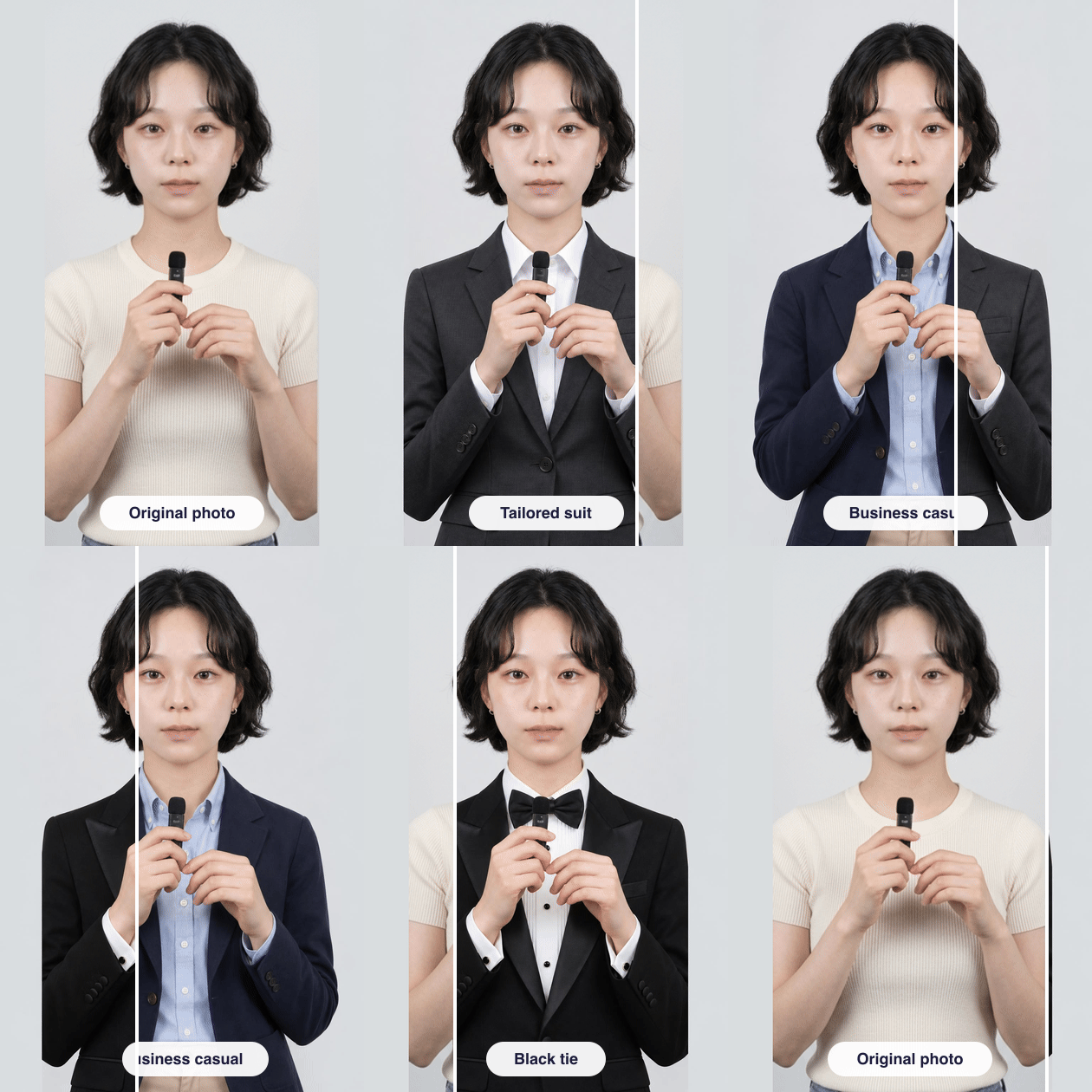
Use a waist-up photo facing the camera, pick the Work occasion, and put a tailored suit, business casual and a plainer option side by side. Then wear the winner to the real shoot. Some people go further: one Reddit user describes replacing the top in a professional photo with a more formal one for a resume, and was happy with the result.
For the rules themselves (colors, necklines and what to skip), see our guide on what to wear for a headshot.
If you want the finished headshot as well, the AI Photoshoot Generator makes studio-style portraits from a selfie. One rule for a CV or LinkedIn: the photo must still look like you on an ordinary day. Check an edited image closely before you use it as a profile picture.
3. Plan a Wedding or Event Look
Weddings come with a dress code, a season and a color to avoid. There are ready-made wedding guest and cocktail looks, and you can type the brief you were given: “a sage green midi dress for a garden wedding in June”.
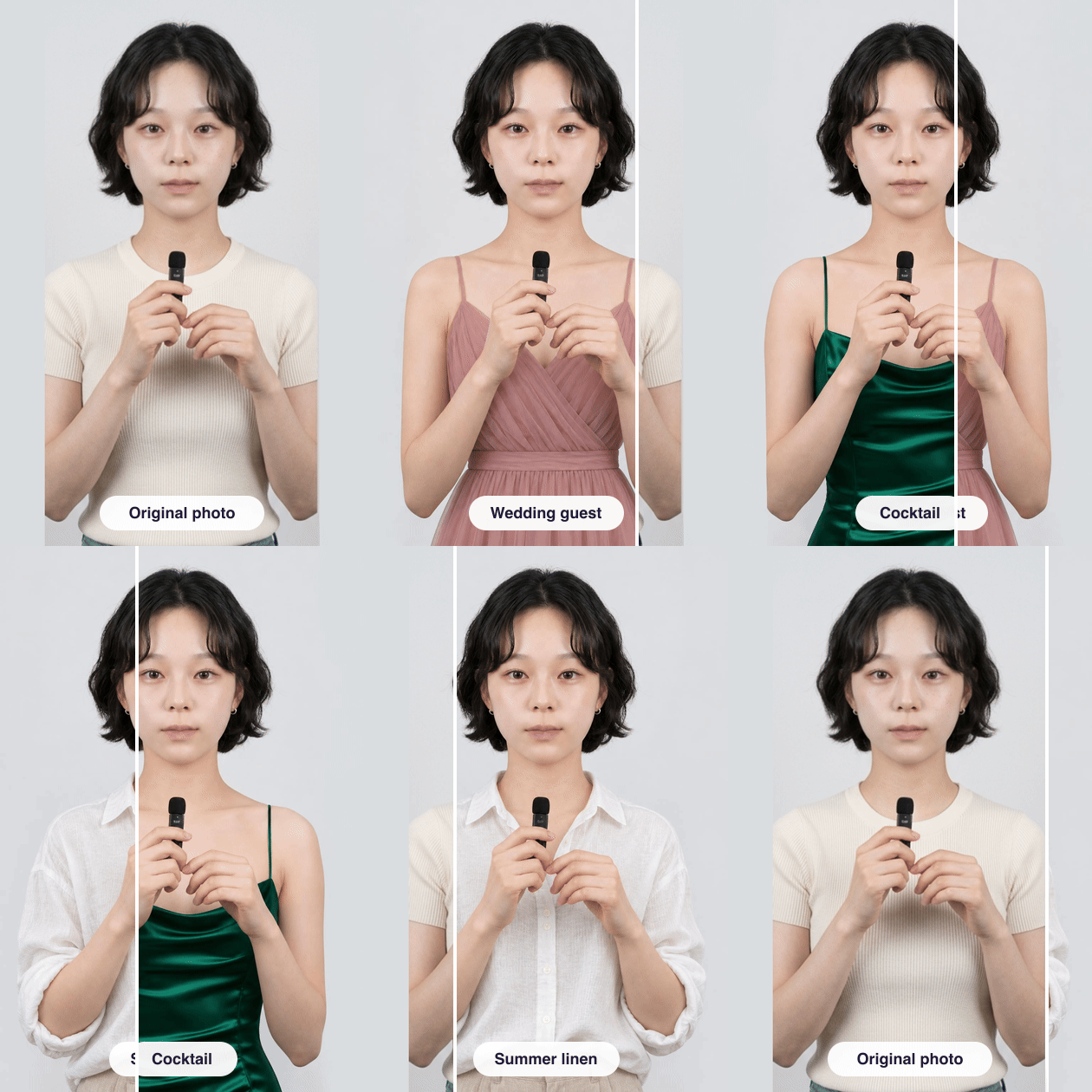
For a wedding dress, upload a photo of the dress itself and use the result to rule silhouettes in or out: A-line, column, off-shoulder. It does not replace a fitting. A real dress depends on fabric weight and tailoring, which a picture cannot show.
4. Test an Aesthetic
People who search for Y2K or old money outfit ideas mostly end up looking at photos of other people. The faster test is to put the aesthetic on your own photo.
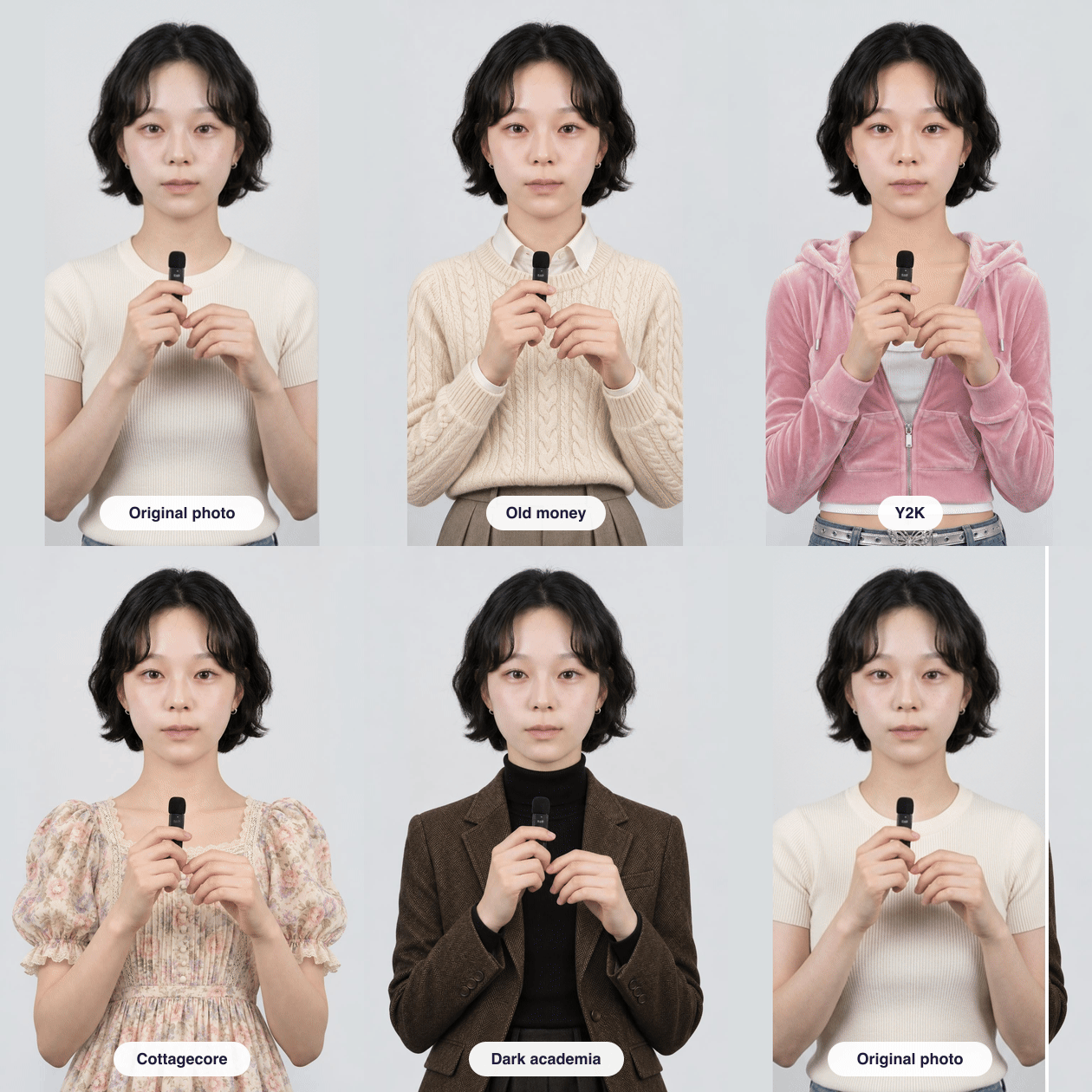
Pick the Aesthetic occasion and run old money, Y2K, cottagecore, preppy and dark academia on the same photo. Two or three will clearly suit you better than the rest. That is your shopping list, and you have not bought anything yet.
5. Try a Costume
Costumes are expensive to get wrong. Try the idea first: wizard, pirate captain, royalty, cyberpunk, or anything you can describe in a sentence.
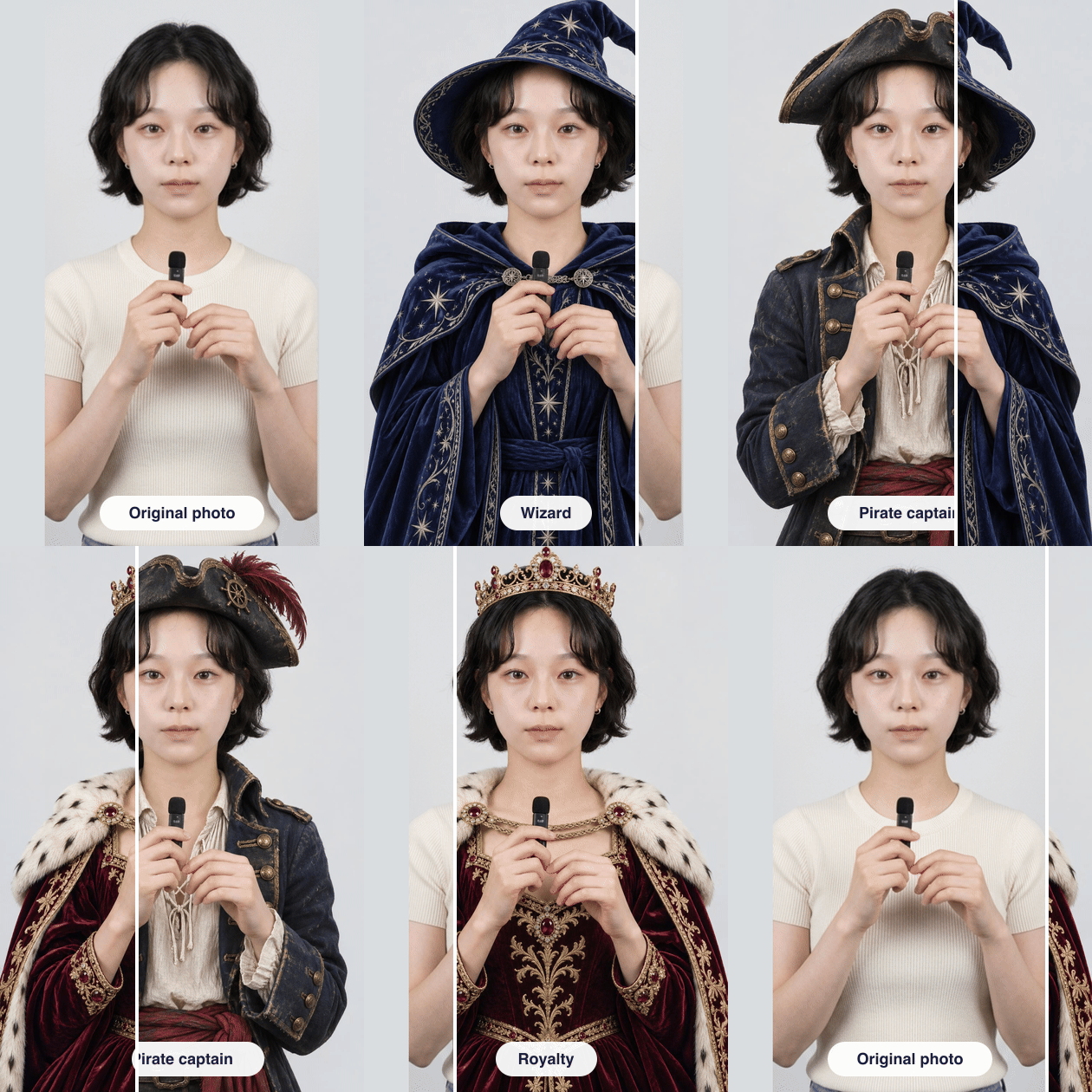
It also settles group costumes: send each friend their photo in the theme and vote. For a full Halloween scene with a new background, use the AI Halloween Costume tool. The outfit changer keeps your original background.
6. Make Outfit-Swap Content
An AI outfit swap is ready-made content: one photo, five looks, “which one should I wear?”. Because the pose and the framing stay the same, the images line up for a carousel or a before and after.
Say that the images are AI-edited when you post them. To change the hair as well, the AI Hairstyle Changer works the same way.
Choosing the cut itself? Our guide to what haircut you should get starts with your face shape and ends with the same kind of test on your own photo.
7. Show a Garment on a Person for a Small Shop
If you sell clothes, thrift finds or samples, you can upload a flat photo of the garment and show it worn. It helps a buyer picture the piece.
Be careful with this one. The AI redraws the garment, so a print, a logo or the exact length can change. Keep your real product photos as the main images, label the AI image as a preview, and never use it to describe fit or material.
How to Change Clothes in a Photo With AI
- Upload your photo at the AI Outfit Changer. A sample photo is already loaded if you only want to see how it works.
- Choose the outfit. Pick an occasion and an outfit, type a description, or upload a photo of the clothes.
- Press Change outfit and compare the result with your original. Change the outfit and run it again for the next look.
How to Get a More Realistic Result
- Use a clear photo in good light with a plain background, waist-up or full-body.
- Wear something fitted in the photo. Baggy clothes hide your shape, and the new outfit is drawn over that shape.
- Face the camera and keep your hands visible. Crossed arms and bags in front of the body make the clothes harder to draw.
- One person per photo.
- For a clothing photo, a front-facing product shot or a clean flat lay beats a wrinkled or angled one.
- When you describe an outfit, name the garment, the color and the fit: “a cropped black leather jacket over a white tee, straight blue jeans”.
What an AI Clothes Changer Can’t Do
- Sizing. It draws clothes that fit the body in the picture. It does not know if a size M fits you.
- Fabric. Weight, stretch and texture are guesses.
- Exact details. Prints, logos and small text on an uploaded garment can come out slightly different.
- Hands and accessories. Check hands, jewelry and anything you are holding before you share the image.
Treat the result as a preview that helps you decide, not as proof of how the item will look when it arrives.
Is There a Free AI Clothes Changer With No Sign-Up?
Many tools are free to start, and the limits differ. Here are Koosu’s, as of November 2026:
- Without signing up: 2 free generations.
- Free account: starts with 2 credits. One generation costs 1 credit. With no credits left, you get 2 free generations a week.
- Watermark: free generations carry a small watermark. Generations paid with credits do not.
- Download: needs a free account.
FAQs
Can AI change the clothes in my photo?
Yes. Upload the photo, then pick an outfit, describe one, or add a photo of the clothes. The AI redraws the clothing and keeps the face, the pose and the background.
Which app can change your outfit?
There are phone apps and browser tools. Google and ChatGPT have try-on inside their shopping results. Koosu’s AI Outfit Changer runs in the browser with no app to install. It is not the same as an outfit generator: Koosu’s AI Outfit Generator turns a photo of your outfit into a fashion illustration.
Is there a free app that can change clothes in a photo?
Yes. Koosu gives 2 free generations without an account, and 2 a week on a free account that has no credits. See the limits above.
Can an AI clothes changer tell me my size?
No. It shows style and color on your body. For size, use the shop’s size chart, or measure a piece you own that fits the way you like.
Is my photo stored?
On Koosu, your original photo is sent to the AI model for that one edit and is not saved on our servers. Only the result is stored, so you can download it.
Try It on Your Own Photo
Pick the use that matches what you are deciding today, upload one photo, and run two or three outfits. It takes a few minutes, and the first two are free.